Payments
Overview
This section covers the core features for managing your treasury's funds.
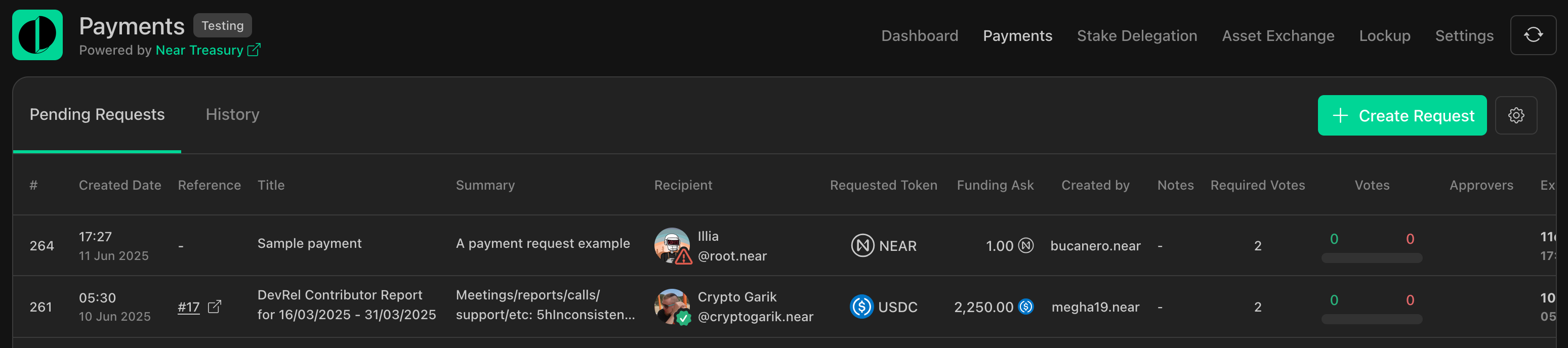
Available actions:
- Creating Payment Requests
- Approving or Rejecting Payment Requests
- Filtering Payment Requests
- Searching Payment Requests
- Viewing Payment Details
- Exporting Payment Transactions
Creating Payment Requests
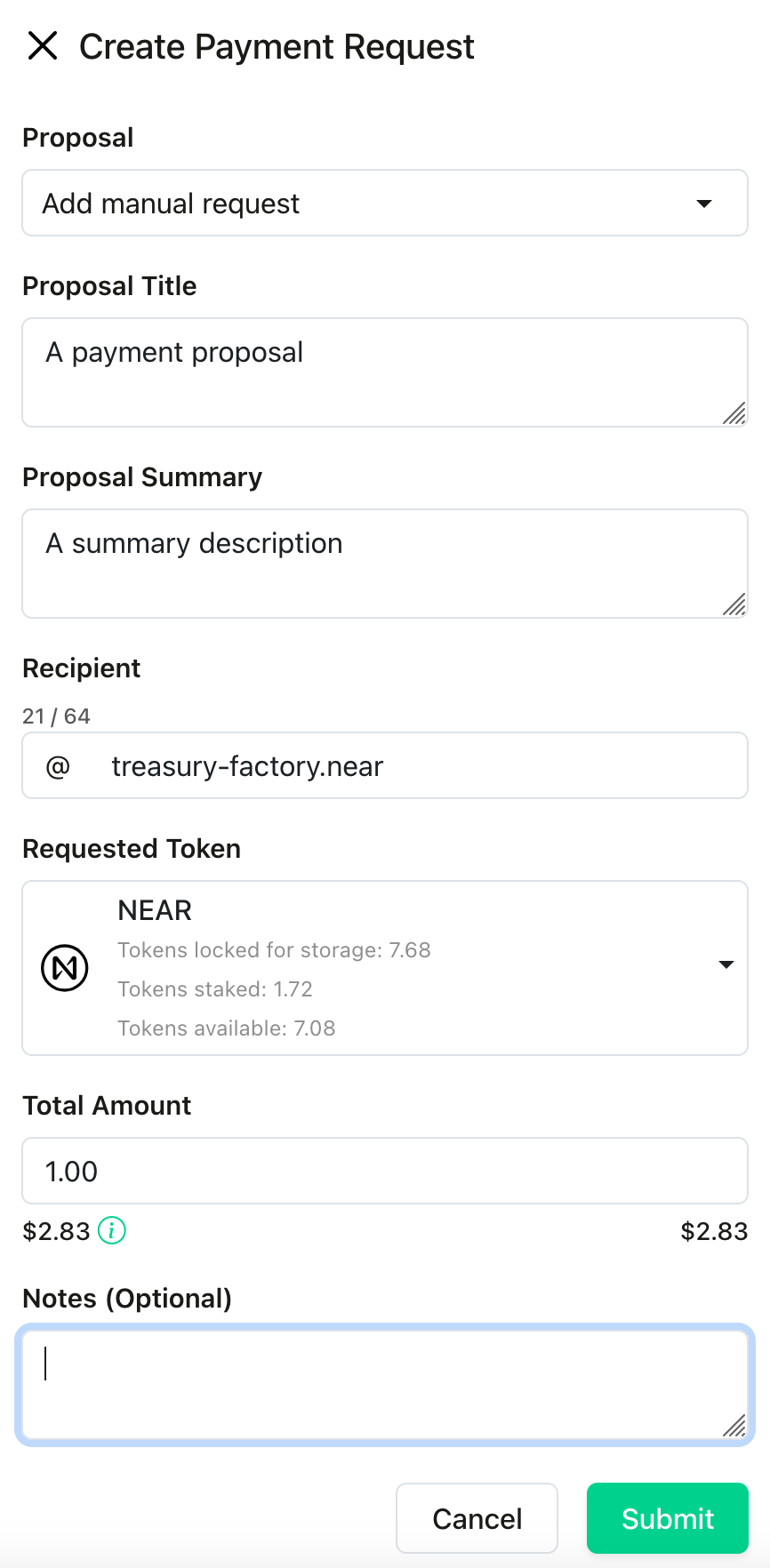
To create a new payment request:
- Navigate to the
Paymentssection. - Click the
Create Requestbutton. - Select the
SputnikDAOTreasury Wallet. - Fill in the required details, such as the recipient's wallet address, the amount to send, and any relevant notes.
- Submit the request for approval.
Approving or Rejecting Payment Requests
Payment requests require approval from authorized team members. To review and vote on pending requests:
- Navigate to the
Paymentssection. - View the list of pending requests.
- (Optional) Apply filters to find the desired payments.
- Review the details of each request.
- Cast your vote to approve or reject the request.

You can sort payment requests by date by clicking on Created Date. (Ascending or descending order)
Filtering Payment Requests
You can easily filter payment requests to find specific payments.
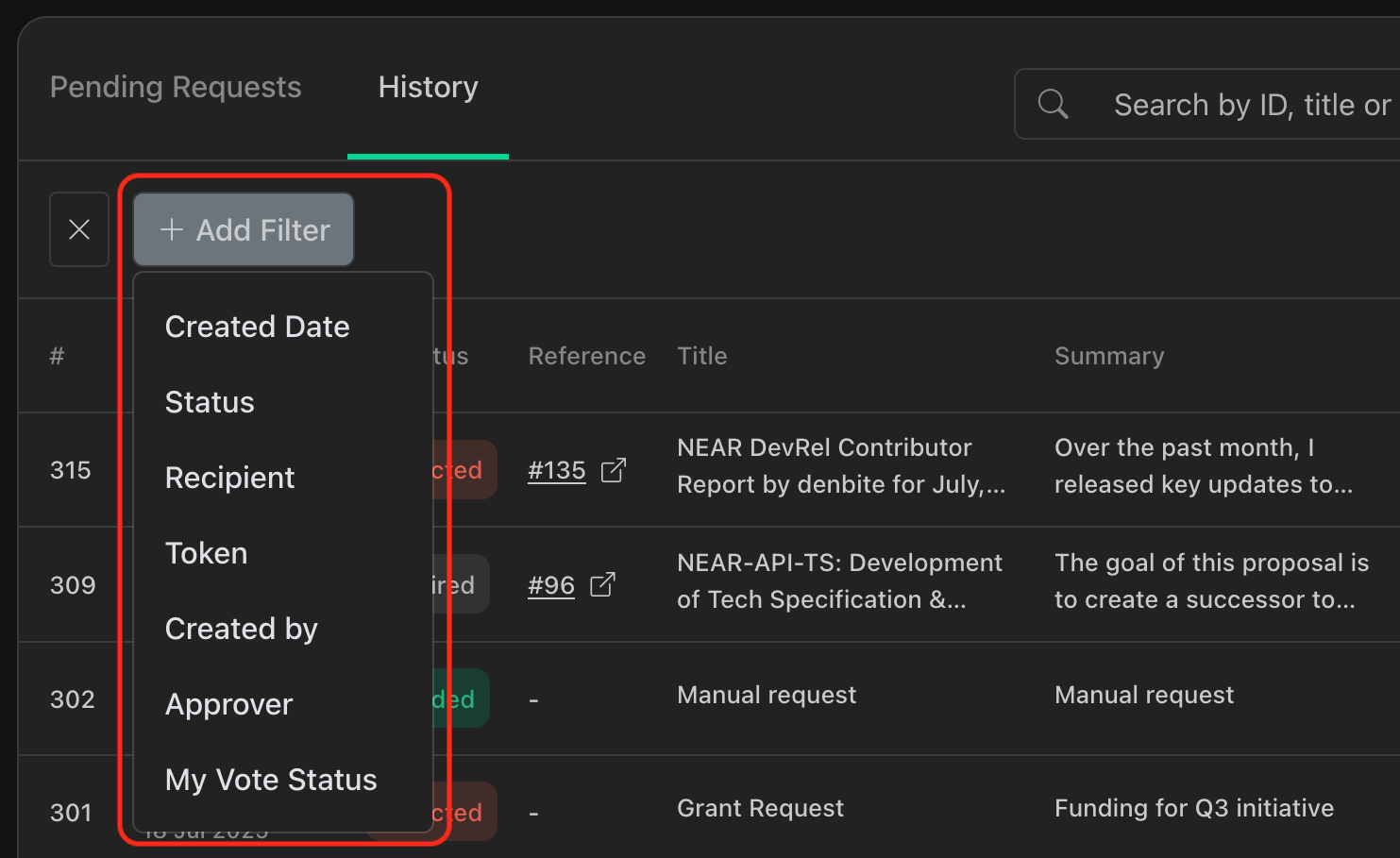
Creation Date,Status,Recipient,Token,Created by,Approver,My Vote status
To filter payment requests:
Navigate to the
Paymentssection.Click on the
Filtericon.
Select the filter that you want to add.
Add filters as needed.
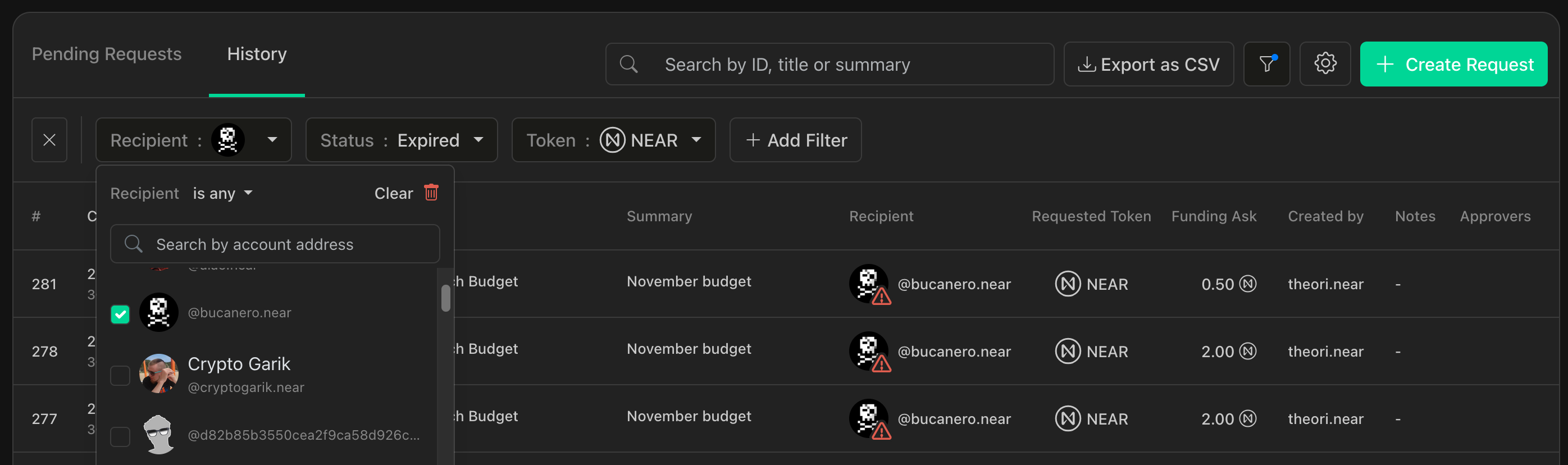
(Optional) Export filtered results as CSV.
- Select
Filtered Requests Onlyto export records to a.csvfile.

- Select
Searching Payment Requests
You can search for keywords on your payment requests to find specific payments.
- Search by
ID,Title,Summary
To search and find payment requests:
Navigate to the
Paymentssection.Click on the
Searchtext box.
Type the words that you want to search.

(Optional) Export results as CSV.
- Select
Filtered Requests Onlyto export records to a.csvfile.
- Select
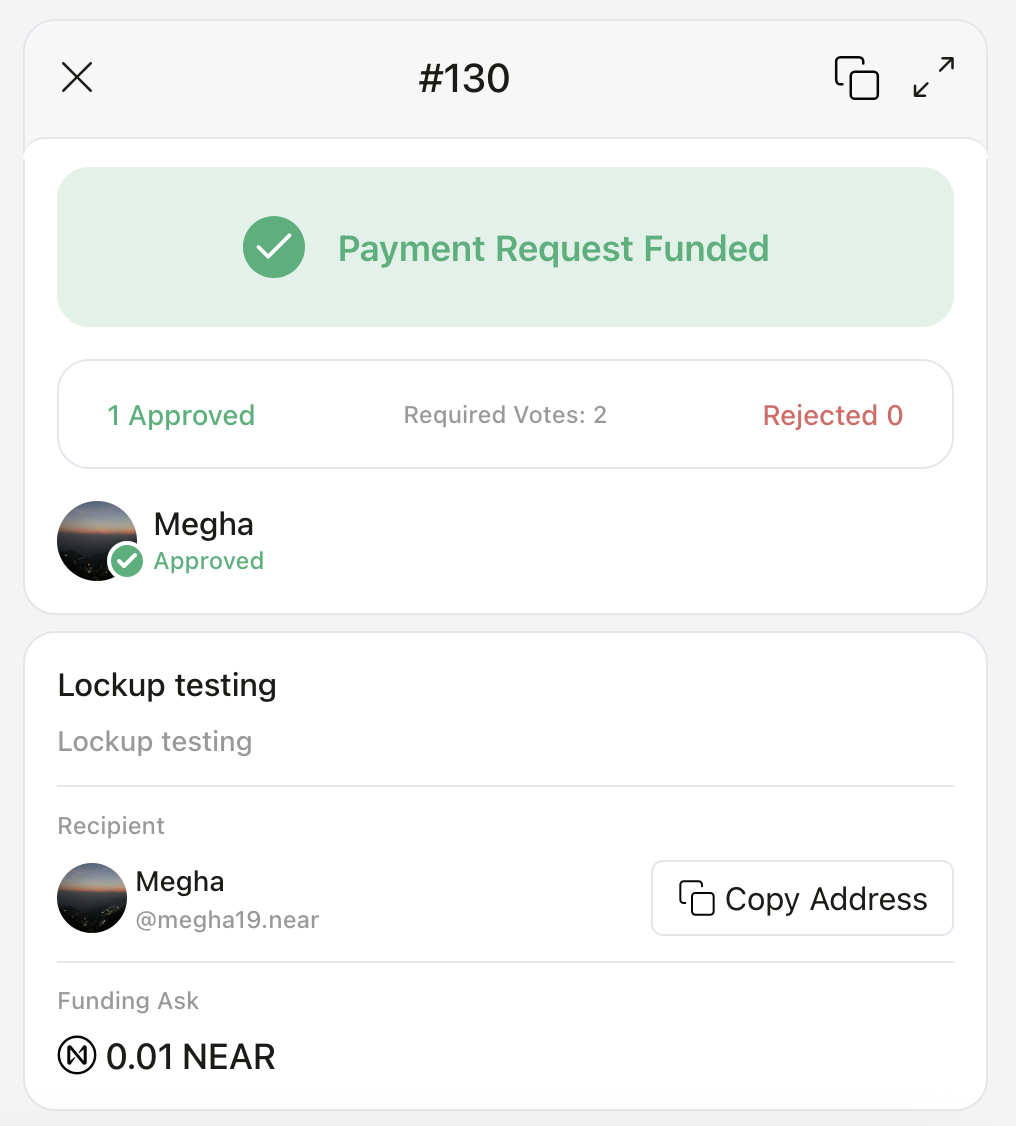
Viewing Payment Details
You can view payment details by clicking on any item under the Pending Requests or History list.
When opening the detail window, you can also copy a direct link to the payment detail page.
Exporting Payment Transactions
To export payment transaction records to a .csv file:
- Navigate to the
Paymentssection. - Switch to the
Historytab.- (Optional) Apply filters to find the payments you want to export.
- Click the
Export as CSVbutton.- (Optional) Select
Filtered Requests Onlywhen applying filters.
- (Optional) Select
