NEAR Intents
Overview
NEAR Intents is a powerful feature of the Treasury Dashboard that enables cross-chain asset management and payment processing. This system allows DAOs to receive deposits from multiple blockchain networks and create payment requests for various cryptocurrencies while maintaining assets in a unified interface.
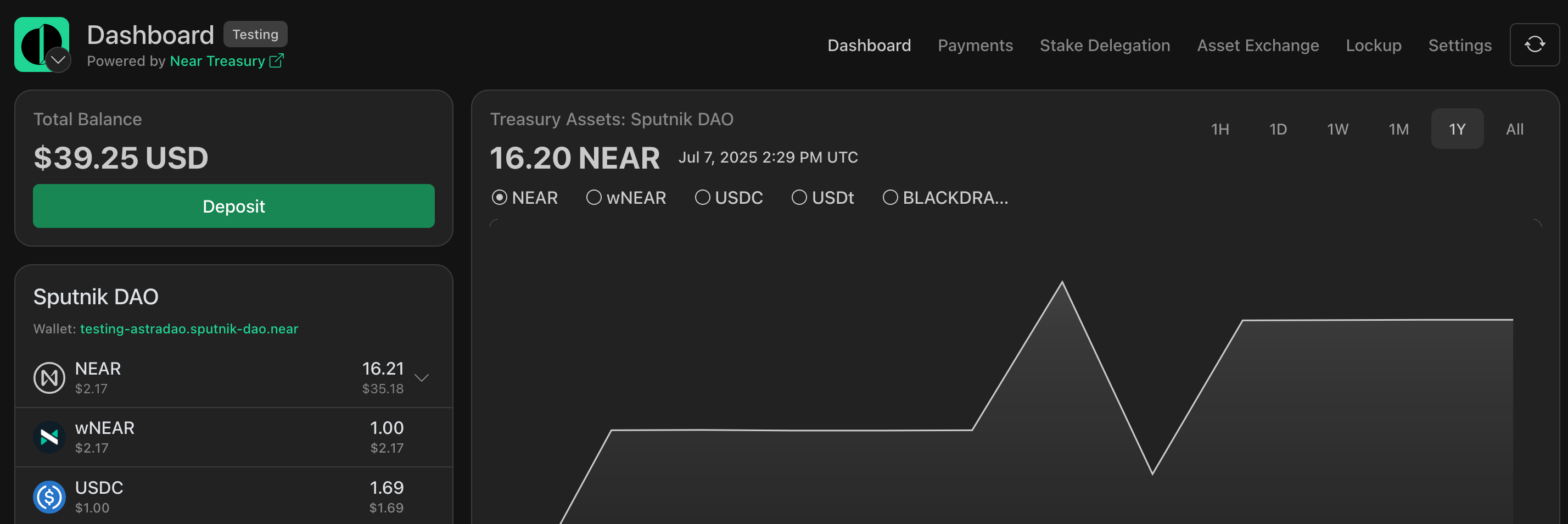
Available actions:
Asset Management
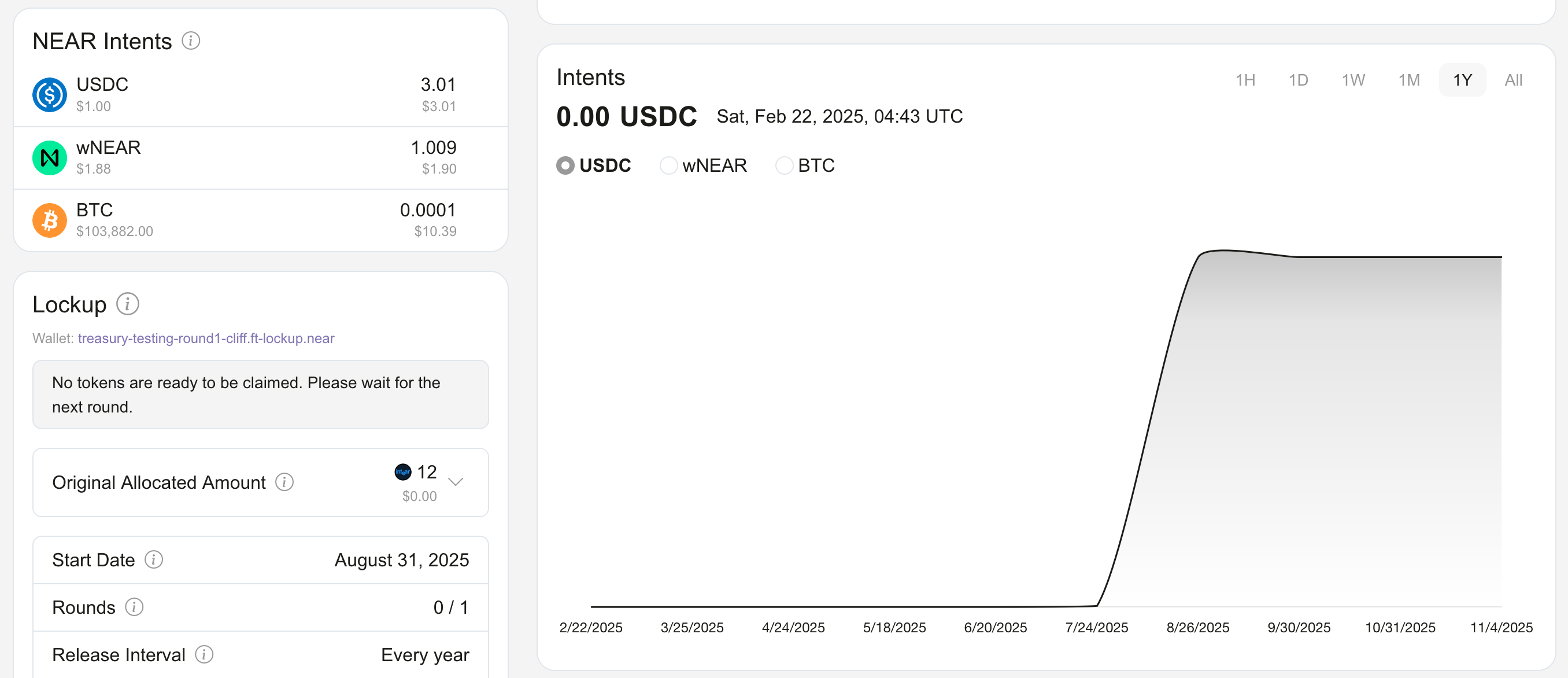
The NEAR Intents dashboard integrates seamlessly into the Treasury Dashboard, providing a comprehensive view of your cross-chain assets.
Dashboard Components
Total Balance Card:
- Displays aggregate USD value including NEAR Intents assets
- Features a
Depositbutton for new deposits - Updates automatically when Intents balances change
NEAR Intents Section:
- Shows individual asset balances with proper token precision
- Displays assets from all supported networks
- Includes icons for each blockchain and asset
- Shows USD equivalent values when available
Supported Networks
The system supports a wide range of blockchain networks like ETH (eth:1), BTC (btc:mainnet), SOL (sol:mainnet), BASE (eth:8453), ARB (eth:42161), NEAR (near:mainnet), XRP (xrp:mainnet), and TRON (tron:mainnet).
For a complete list of supported chains and assets, check this page.
Supported Assets
The system supports a wide range of assets, including:
- Native tokens: ETH, BTC, SOL, XRP, TRX
- Stablecoins: USDC, USDT, DAI
- DeFi tokens: AAVE, UNI, COMP
- NEAR ecosystem: wNEAR, REF, AURORA
- Memecoins: SHITZU, PEPE, DOGE
Making Deposits
NEAR Intents supports deposits from multiple blockchain networks into your DAO treasury.
How to Make a Deposit
Access Deposit Interface
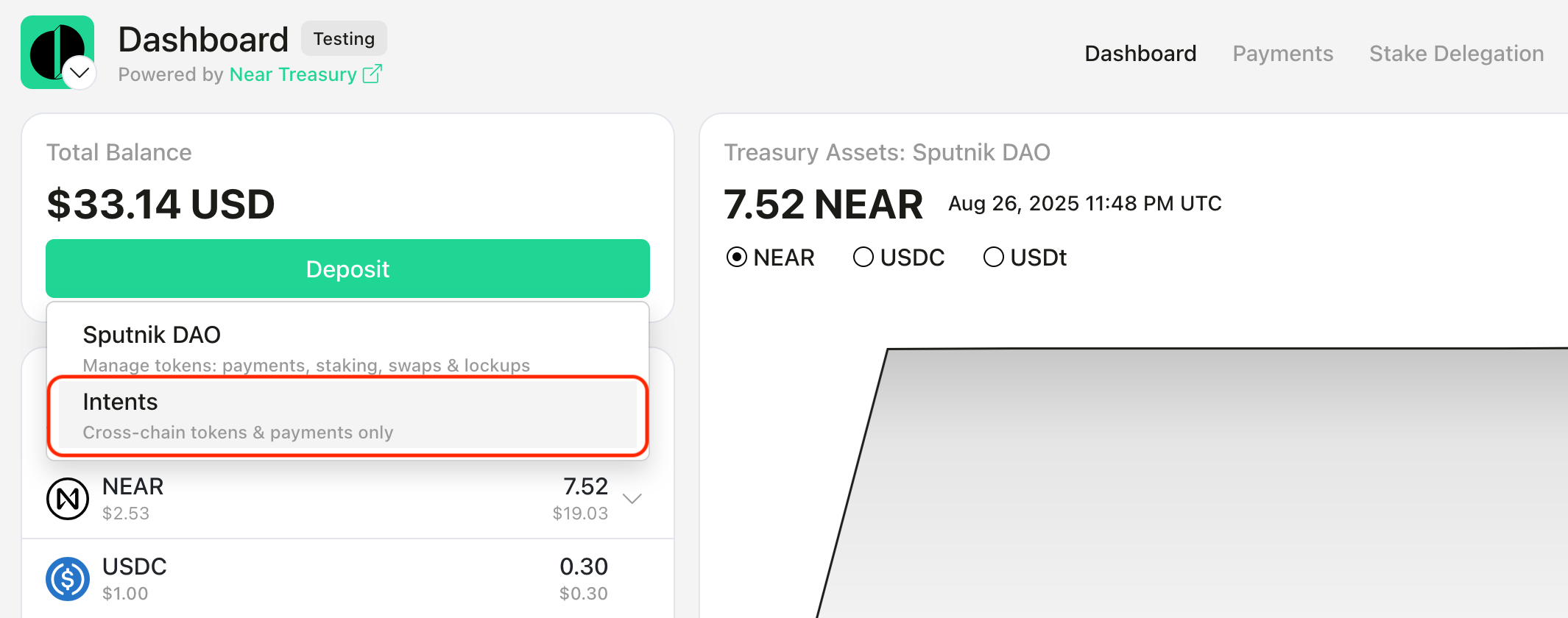
- Click the
Depositbutton in the Total Balance card
- Click the
Select NEAR Intents
- Click on the
Intentsbutton to access cross-chain deposits - This shows all supported assets and networks
- Click on the
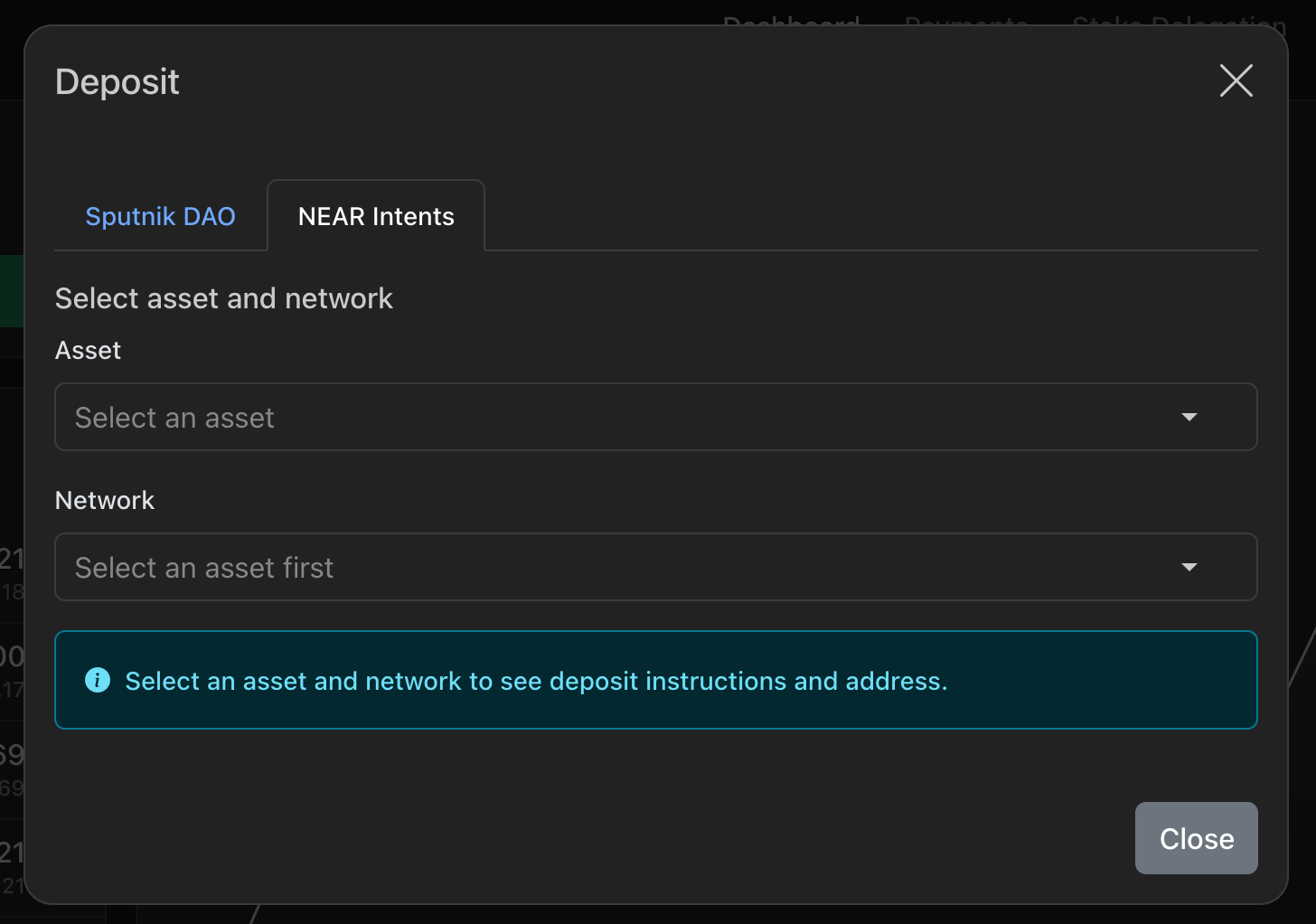
Select Asset and Network
- Browse available assets or use the search function
- Select the blockchain network (displayed with human-readable names)
- Each network shows its native name (e.g.,
ETHfor Ethereum,BTCfor Bitcoin)
Get Deposit Address
- The system generates a unique deposit address for your selected asset/network
- QR codes are automatically generated for easy mobile wallet scanning
- Copy the address or scan the QR code with your wallet
The deposit address might change, so always get the latest deposit address before making a new transaction.
Complete the Deposit
- Send your assets to the provided address
- Deposits are processed automatically through the bridge infrastructure
- Assets appear in your dashboard once confirmed on the source network
We recommend starting with a small test transaction to ensure everything works correctly before sending the full amount.
Creating Payment Requests
NEAR Intents enables DAOs to create payment requests that utilize cross-chain assets for disbursements, including:
- Cross-Chain Payments: Send BTC, ETH, or other assets to external addresses
- NEAR Native Payments: Transfer wNEAR or other NEAR tokens
- Multi-Asset Support: Choose from any available asset in your treasury
Creating a Payment Request
Follow the regular process to create a payment request:
Access Payment Interface
- Navigate to the
Paymentssection - Select
Create Request
- Navigate to the
Set the Treasury Wallet
- Select
NEAR Intents
- Select
Configure Payment Details
- Requested Token: Choose from available Intents assets
- Recipient: Enter the destination address
- 💡 The recipient address should belong to the same chain as the token. E.g., if the selected token is BTC on the Bitcoin blockchain, then the recipient should also be a Bitcoin chain address.
- Amount: Specify the payment amount
- Description: Add context for the payment
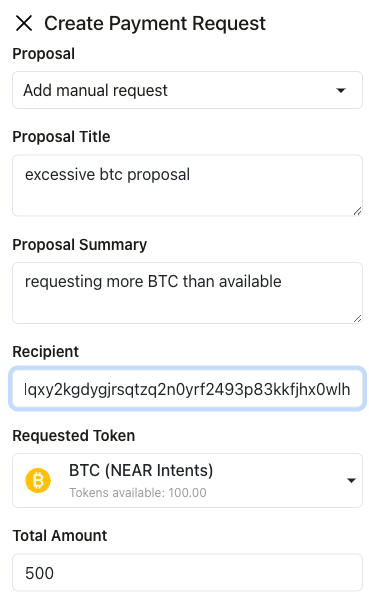
- The system validates recipient addresses for the selected network
- Format checking ensures compatibility with the target blockchain
- Network-specific validation prevents errors
Submit for Approval
Payment requests follow standard DAO governance processes
Council members vote on approval
Approved payments are executed automatically
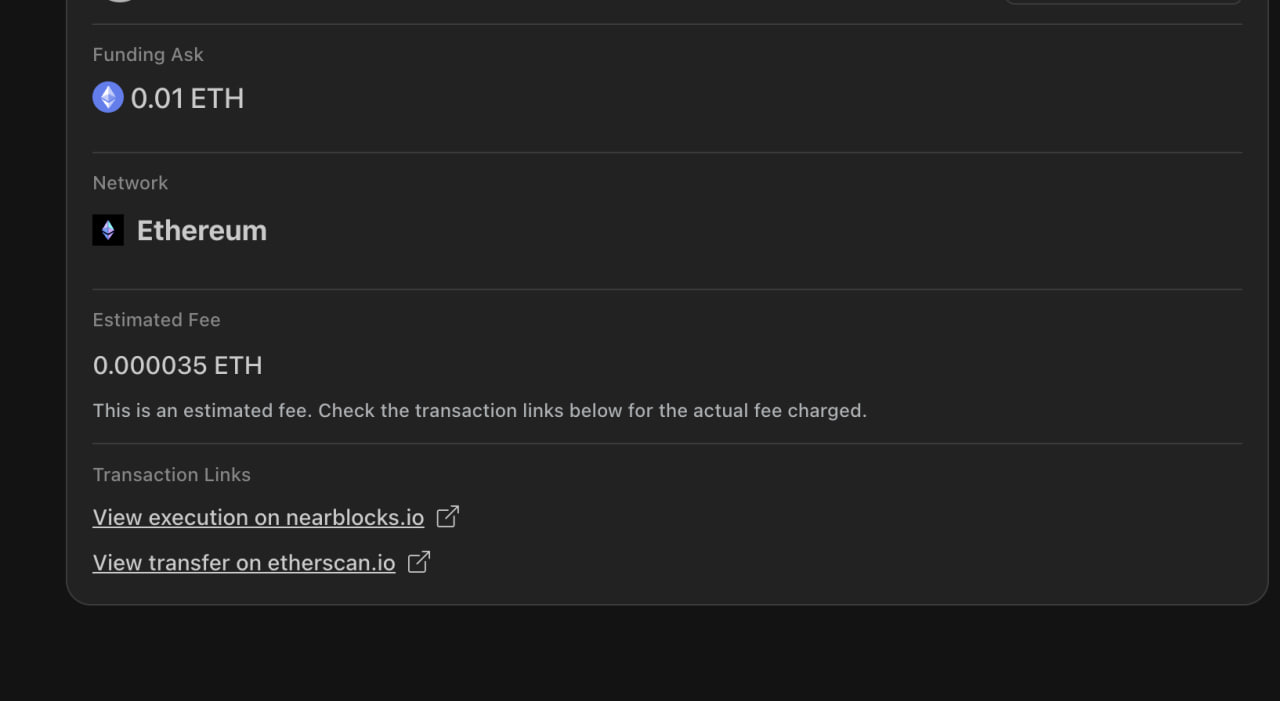
Once the payment is approved and executed successfully, the user can see the transaction links in the proposal details page.
Troubleshooting
Here's a quick reference for troubleshooting common issues:
Deposit Not Appearing
- Check transaction status on source blockchain
- Verify minimum confirmation requirements
- Ensure correct deposit address was used
- Contact support if delayed beyond expected timeframe
Payment Request Failures
- Verify sufficient balance in treasury
- Check recipient address format
- Ensure network compatibility
- Review gas fee requirements
Balance Display Issues
- Refresh the dashboard
- Check network connectivity
- Verify RPC endpoint status
- Clear browser cache if necessary
Error Messages
Insufficient Balance: Treasury lacks required funds for paymentInvalid Address: Recipient address format is incorrectNetwork Mismatch: Asset not supported on selected network